Showing posts with label Software. Show all posts

Wednesday, July 15, 2015

“SourceForge are (sic) abusing the trust that we and our users had put into their service in the past,” according to the GIMP project. Since 2013, SourceForge has been bundling junkware along with their installers — sometimes without a developer’s permission.


Be careful and avoid downloading software from SourceForge if you can help it. Many open-source projects now host their installers elsewhere, and the versions on SourceForge may include junkware. If you absolutely have to download something from SourceForge, be extra careful.

I know that this is gonna strike you and you're gonna be surprised but SourceForge has also turned now to the dark side. SourceForge elevated hopes of many people who were tired of the malware they received while downloading stuff from freeware software sites and certainly it built up a lot of goodwill in the past, being a centralized place for downloading open-source software and hosting software repositories. Over the years, more projects have moved to other repository-hosting services like GitHub.

In 2012, a company named Dice Holdings bought SourceForge (and Slashdot) from Geeknet. And in 2013, SourceForge enabled a feature named “DevShare.” DevShare is an opt-in feature developers can enable for their own projects. If a developer enables this feature, you’ll download their software from SourceForge to find that it’s been wrapped in SourceForge’s own installer, which pushes intrusive junkware onto your system. SourceForge and developers make money by foisting this software on you, just as practically every other download site and freeware distributor does on Windows.


WARNING: Don't Download Software From SourceForge If You Can Help It

Monday, July 13, 2015

Whenever we download something from the internet, it comes in a special '.exe' package file which we open and proceed to install that piece of software that we have downloaded from the Internet. These files are usually called 'Setup files' or 'Installation Wizards'.

This tutorial is going to show you to how to make a professional-looking Installation Wizards.
For this purpose, you'll be needing a software named Smart Install Maker.


Just click here to download this software. (If this link doesn't work, then click here to download this software manually.)


This software is really light-weight (like 1.5MegaBytes).

Once you have download it, open it. Now as you'll have already seen that this is basically a trial version and you'll have to buy its full version. But do not worry, we here are providing you with a free serial key.

The stuff you'll need for registering this software is:

Name:
IRAQ_ATT
 
Serial Key:
TZZMY-R72ZU-IVXRW-SZTV5-AJWCI
 
 
Just do as the following images show to register:


Done you'll be done with registering!

So after that you can make package files or installation wizards of any file you like. Here below, we are giving you an example on how to do so:


All of the configurations we have shown in above screenshots were the essential ones, the other configurations are not necessary but are useful if to want to get more out of your package file.

For starting the creation of your package file do as it is shown below:

Click this little button which is present on tools pane of software:


After it, the compiling will start and you'll start seeing something like this:


So, this is how you can make professional-looking installation wizards!


DO COMMENT IF YOU FIND THIS ARTICLE USEFUL OR OTHERWISE!


How To Make Professional-looking Installation Wizards Or Setups Easily?

Thursday, March 26, 2015

There is this one app for Google Chrome that I really do love, this app actually is great for you if you are habitual of watching online videos (YouTube, Dailymotion, Metacafe etc..).


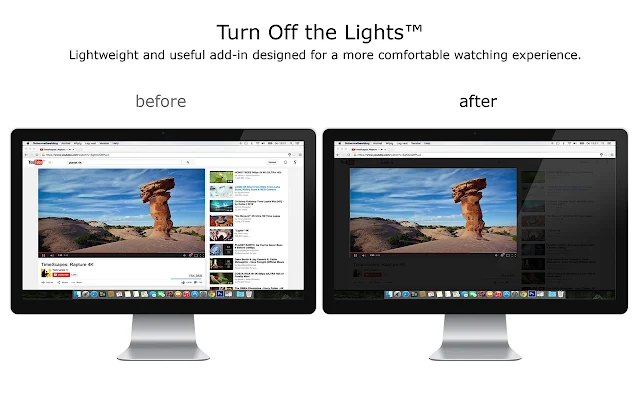
This one cool extension actually makes the entire page fade to dark, so you can watch the videos as if you were in the cinema. The name of this extension is 'Turn Off The Lights' and you can install it on your Google Chrome by clicking here.


With a single click on the lamp button, the page will fade to dark. And automatically focus on the video. By clicking on it again, the page will return to normal.

Turn Off the Lights is a lightweight and useful add-in designed for a more comfortable watching experience. It works for all known video sites such as YouTube, Vimeo, Dailymotion, Hulu, Metacafe, YouKu, etc. Not only this but these extensions are compatible with Google Chrome™, Apple Safari™, Mozilla Firefox™, Opera™, Internet Explorer™, Maxthon™ and Yandex™ web browsers.

A few great features in this browser extension:
✓ Turn the lights back on, by clicking on it
✓ Support multiple video sites: YouTube™, HTML5 video,... and more
✓ Customize your YouTube™:
     Auto HD: Set videos to play in HD automatically. Users can select from highres > 1080p > 720p > 480p > 360p > 240p > 144p > default
     Auto Wide: Automatically plays the video on the widest mode
     ,... and more
✓ Easter Eggs:
     Shortcut key: T -> Do you like a real movie theater feeling?
✓ Option to make the screen dark when the user clicks on the play button
✓ Option to turn on/off the fade in and fade out effects
✓ Custom colors
✓ Option to Flash Detection
✓ Option to Show Dimness Level Bar
✓ Option Eye Protection for when it's night. And with whitelist/blacklist filter
✓ Option atmosphere lighting that shows a glow around the video player
✓ Option to show the dark layer on the top of the window
✓ Options to shortcut keys:
     Ctrl + Shift + L to toggle the lights
     Alt + F8 to restore the default opacity value
     Alt + F9 to save the current opacity value
     Alt + F10 to enable/disable the Eye Protection feature
     Alt + (arrow up) to increase the opacity
     Alt + (arrow down) to decrease the opacity
     Alt + * to toggle the lights on all open tabs
✓ Option Camera Motion
✓ Option Speech Recognition
✓ Option to place the Night Mode switch to toggle YouTube™ in black or white theme. And with whitelist/blacklist filter
     Time stamp: Activate the Night Mode within the chosen time
     Blackout: Dims the web page and activates the Night Mode
✓ Option to stop YouTube™ and HTML5 videos from automatically playing.


Turn Off The Lights - Watch Videos In Chrome Like You're In A Cinema

Tuesday, March 24, 2015

Let's get this straight, we sometimes browse stuff that we don't want others to see or find in our browsing history, it doesn't mean that I am here about the browsing the red-light district of the World Wide Web but if your web browser gets the ability of automatically cleaning up the data of what sites you visited as soon as you closed it, won't it be awesome? It'll also mean that you won't need to manually log out of all the websites, because when the data from a browser is cleared, all the active logged in websites are also logged out automatically.


This easy tutorial's gonna teach you how to do it on two pretty popular browsers: Firefox and Chrome.

In Google Chrome:

This popular browser ain't got no built-in settings to make it able to automatically delete all it's browsing history and data before it is closed, so we are gonna take help of a cool little extension.

Click here to install this extension on Google Chrome.


Install it completely, once it is installed fully, click its icon near the Chrome Menu button.


Now, click on Options, and scroll down to the 'EXTRA' section and set the settings as we have in the screenshot below:


You are done! Now Google Chrome's browsing history's gonna be deleted automatically as soon as you close it. ;)


In Mozilla Firefox:

Visual instructions (in form of an animated GIF image):


Written instructions:

Click Firefox menu, click Options, click the Privacy tab, open the drop-down menu on which there is default option selected Remember history, change the option to Use custom settings for history, and select the option: Clear history when Firefox closes.


How To Automatically Delete History When You Close Your Browser...?

Tuesday, March 17, 2015

There are many defragging software out there that you can easily find on the World Wide Web but the problem with them is that they only allow you to drag a whole drive.

Defraggler lets you specify one or more files, folders, or the whole drive to defragment. When it reads or writes a file, it uses the exact same techniques that Windows uses. Using this application is just as safe for your files as using the Windows OS defragmentation tool.


You can see how fragmented your hard drive is. Defraggler’s awesome drive map not only clearly shows you blocks that are empty, not fragmented, or needing defragmentation but also you can see the Boot time defrag of system files.
The application can also organizes empty disk space to further prevent fragmentation. With a fully customizable scheduler, you can set Defraggler to run daily, weekly or monthly.
You can even setup Defraggler to perform operations whilst you sleep, so when you wake up your PC will be noticeably faster. 
The application also has Full Windows OS and Multi-lingual support. In fact, it supports 37 major languages.
The following updates have been undertaken in this latest version of Defraggler:
  • Added move Files or Folders to end of drive.
  • Improved SSD Optimize and Quick Optimize.
  • Added new scriptable /CHECKERRORS parameter to check drive for errors.
  • Added option to disable auto Benchmark after Defrag.
  • Improved localization support.
  • Minor GUI improvements.
  • Minor bug fixes.
Defraggler is made by Piriform, the company that also brought you CCleaner and Recuva, so is completely free! You can download this awesome software by clicking here.

Slow And Unresponsive PC? Try Defraggler...

Friday, March 13, 2015

Internet should be free, that's what everybody thinks but... Unfortunately some governments don't think so. China has blocked Blogger, YouTube, Facebook and many other sites and it has such blocking system that it is called The Great Firewall of China. Lol, many other countries have also blocked websites that they think are not good for their people. Some contain blasphemous content (this is absolutely a valid reason for blocking such corrupt websites), but some wicked governments just block sites that contain revolutionary and rebellious ideas against them (now that is some thing to stand against).


Here we are sharing a little tool with you that can be installed on Mozilla Firefox or Google Chrome and it works awesome. This pretty popular tool called ZenMate is an extension for Chrome and Firefox and it not only efficiently secures your connection to protect it from any hazards but also lets you to browse sites that are blocked in your region.

Click here to install it on Firefox.
Click here to install in on Chrome.

Through this awesome extension you can not only unblock the web by changing your IP with 5 locations across the globe but also ZenMate secures your browsing with encryption, protecting you from hackers, snoopers and data thieves who prey on insecure connections.

Some of the best features of this application are as following:

Total Security & Privacy
Encrypts and secures all your browser traffic! ZenMate Security & Privacy VPN gives protection for you and your browser whether you're at home, on the go or using public WiFi. Better than any simple proxy service out there!.


Complete Freedom
Unlock the internet with all its sites and and hide your IP by changing your location using our VPN. Choose from 5 countries across the world!


Lightning Speed
Benefit from our advanced data compression and experience maximum browsing speed with our built-in accelerators.


You Don't Need Nothing Else
Just install this awesome extension on your Firefox or Chrome and you don't need anything else! Who needs a premium proxy software like Hotspot Shield when you got this cool extension installed right in your browser?

Here's a proof to show you how good this extension works:

http://i.solidfiles.net/031a705ca7.gif


How To Bypass Blocked Sites Easily On Firefox/Chrome...?

Mozilla Firefox, one of the most popular and widely used web browsers in the world, allows you to save your login details (your usernames and passwords on various websites), this feature actually helps you because if you are having a personal computer or a personal laptop and don't want to lose or forget your login details on different sites, this feature's gonna make sure you don't forget them by saving them.


But with that, if you sometimes need to give your laptop or computer to somebody for use and are fearing that they are gonna login to signs on which you have got personal accounts, then this tutorial's gonna show you to how to set a master password on the login details manager of your Firefox.
So whenever you'll request Firefox to display your login details, it'll at first ask for the master password and this password should only be known to you so only you can see your login details not anybody else.

Setting up a master password in Mozilla Firefox:

 Written tutorial:
1) Open Menu in Firefox.

2) Open Options.

3) Click on Security tab.

4) Check the option Use a master password.

5) Now set your desired password and click OK.

 Done!


Visual Tutorial (GIF Image):


Happy sharing (of computers not your login details)!


How To Set A Master Password In Mozilla Firefox

Wednesday, March 11, 2015

As you all know in recent years we have seen that the WebKit engine is growing more and more popular day by day, Mozilla Firefox is changing at a much greater pace than it once did, and the once undisputed king, Microsoft Internet Explorer, does not dominate user share as it once did.


Vivaldi is an ambitious newcomer, and we’re going to find out if it’s one worth watching.


Vivaldi’s default home page is like the homepage of many other popular modern browsers, its a Speed Dial page. Adding new entries is straightforward, being done through the large ‘+’ icon. While most browsers now integrate something similar, Vivaldi is one of few to integrate bookmarks and history.


Vivaldi doesn’t feel massively different from other browsers, at least in regards to overall usability. It’s comparable to Chrome and Safari, given that it uses the WebKit engine. As a result, performance is essentially on a par with the other main browsers, but it’s the little details that make Vivaldi seem so promising.Vivaldi is still in development and won’t be totally perfect for some time, but even the current developmental builds have been stable in our testing. If you’ve ever expressed longing for the old Opera functionality, Vivaldi has soundly bested its competitors in bringing it back – and done so with support for Windows, Mac and Linux alike. If not, it still remains a well thought-out browser worthy of some attention.

One of the best features this new browser has is that you can change the appearance of webpages by applying filters to them:


Vivaldi: Your Next Web Browser...?

Thursday, March 5, 2015

A new machine with Microsoft Windows installed on it, obviously needs good and useful software if the owner wants to make the most out of it and have a really really good user experience.
Most of the good and useful software are available with a price tag on them, but on the other hand there are some good companies around the world that make free software that have really good use and ensure your system to work efficiently.


We have compiled a list of 7 best free software to install on your new Microsoft Windows PC:

1) PC Decrapifier


Most of the branded laptops come bloated with proprietary (and useless) software which you should get rid of if you want your computer to function properly in the long run. Hence the old and trusted PC Decrapifier becomes a must-install software for new Windows computer owners to weed out junk software and make space for better stuff.
Click here to download this software.


2) Ninite


This awesome website covers the 'how to install' part for you when you look forward to installing new software on your laptop/PC.
This cool installer lets you pick up useful software and install them on the go.
Click here to download this software.


3) Revo Uninstaller


There are some manky software that just don't UNINSTALL! Seriously, these kinda software when installed accidentally really piss off  everybody, because when your go to Add or remove programs in Control Panel of Windows, these software don't even have an uninstaller with them.
But this cool software lets you uninstall these kind of stubborn software.
Click here to download this software.


4) CCleaner


Seriously, we are a big fan of CCleaner or Crap Cleaner! CCleaner is a utility program used to clean potentially unwanted files (including temporary internet files, where malicious programs and code tend to reside) and invalid Windows Registry entries from a computer. Its technology includes the ability to defrag the drives and access the system information in the online service Agomo, developed by Piriform.
Click here to download this software.


5) Recuva


Recuva is an excellent (and free) software to recover deleted files. But why do we need it now? That’s because there’s a lot of deleting and uninstalling happening with CCleaner, Revo Uninstaller, PC Decrapifier and all. If you suddenly delete something that you shouldn’t, and then want to recover it, you would have this tool to fall back on. This tool is also by the same company that made CCleaner, the company named Piriform.
Click here to download this software.


6) VLC Player


VLC is a free and open source cross-platform multimedia player and framework that plays most multimedia files as well as DVDs, Audio CDs, VCDs. Simply the best multi-format media player. If you want to play video or music files in just about any format, this player is for you.
Click here to download this software.


7) Chrome/Firefox


These browsers are a must-have! That's why we have compiled them in one point. These two browsers are our favorite, and to be really honest, they have never disappointed us in modification, flexibility and the most important; speed.
Click here to download Chrome.
Click here to download Firefox.

                 7 Best Chrome Apps Of 2014


Top 7 Free Software To Install On Your New Windows PC

Monday, March 2, 2015

Ever wondered how do they post those moving screen casting photos on blogs? I mean, we all know how to make screen cast videos (a video digital recording of computer screen output, also known as a video screen capture, often containing audio narration) which are usually posted on YouTube as tutorials, for teaching people to do some computer related software stuff, but this cool piece of software (for Microsoft Windows) we are going to tell you about lets you make screen cast animated GIF (Graphic Interchange Format) which means that your screen capture recording will be made an animated GIF image, which you can then post on your blog!

ScreenToGif

The cool thing about this little piece of software is that its pretty light-weight, its own space is 8.37MB (8,782,336 bytes) while the package in which it comes compressed is just of like 870KB.


And one more cool thing about this is that it doesn't need to be installed, just after you extract it, double-click it and run it!

Click here to download this light-weight Windows application. Here look below, we also made a screen cast animated GIF using this application:


Record Your Screen And Save It As An Animated GIF

Friday, February 27, 2015

You remember the time when Chrome used to have a snazzy 3D bubbly and healthy looking icon? Yup, but sadly after that Google Inc, changed it to this completely circular and extremely monotonous new icon, to be really honest, we don't like this new icon even a bit. Google guys changed it for sake of a change, and for signifying their browser's features; simplicity and speed, so they made it simple.


But if you are like us and still miss the old bubbly icon, then this is nothing but a cinch to change it back in Microsoft Windows.

Click here to download the old icon of Google Chrome and then...

Just follow the following visual steps:


Change Google Chrome's Icon To Old One

Wednesday, February 25, 2015

Most of us are only familiar with the big-five internet browsers - Google Chrome, Mozilla Firefox, Microsoft Internet Explorer, Apple Safari, and Opera.

Today we have compiled a list of 4 other alternative browsers, you perhaps didn't know about before reading this post, though these browsers are just based on the basic code of all the famous browsers like Chrome, Firefox but still these browsers have their use.


White Hat Aviator


Worried about your privacy or scared of the NSA spying scandal? Or worried about the advertising companies collecting your data?
This awesome browser blocks holes through which most malicious sites infect your computer. It cuts out all ads and disables the media autoplay. This way, nothing on a website you visit can launch without your permission. By default, Aviator opens in Incognito mode and removes all traces of your online activity when you close it. On top of that, Aviator uses the DuckDuckGo search engine by default — a privacy-focused service that doesn’t link search activity to a user.
Click here to download this browser.


Citrio


Dozens of browsers and applications claim that they can speed up downloads, but only a few actually produce noticeable results. Citrio is one of them. Besides being a browser, Citrio has many additional features, like an integrated bit-torrent client, proxy switcher, video saver and a download manager. The latter is what deserves attention: the download manager not only allows you to resume interrupted or paused downloads, but also speeds them up. Depending on where you download from, you may see a boost between two and five times times your usual speed. This isn’t the only working download accelerator, but it gives noticeable results.
Click here to download this browser.


Midori


If you’re running a low-end machine or have decided to infuse a second life into an old laptop, you’ve probably noticed that browsers tend to occupy lots of RAM. Maybe you don’t need all those fancy extensions, Facebook integration and tons of online services. If you need your browser solely for web research, email and a little social media, Midori will satisfy your humble needs without slowing down your PC. Midori actually originates from Linux, but there is also a Windows version. Not too much to say here: Midori is simple as you would expect, offering tabbed browsing, search, bookmarks, speed dial and some basic extensions (disabled by default). So it doesn’t have much to occupy your RAM with. The simple interface contributes to a lightweight browsing experience without the IE 6 feel so common among other light browsers.
Click here to download this browser.


Coowon


Coowon is designed with online gaming in mind. It offers multiple separate windows to log in to different game accounts, gamepad support for your Logitech or Xbox controller and a “Boss” key to immediately hide the games and pretend that you’re working. Coowon also increases in-game speed, so if a game makes you wait through several hour for a particular event to happen, you can just fast forward ahead and save your time.
Click here to download this browser.


4 Alternative Web Browsers You Should Be Familiar With

 
The Web Saga © 2013-2015 Designed by Haroon Rasheed