
There is this one app for Google Chrome that I really do love, this app actually is great for you if you are habitual of watching online videos (YouTube, Dailymotion, Metacafe etc..).

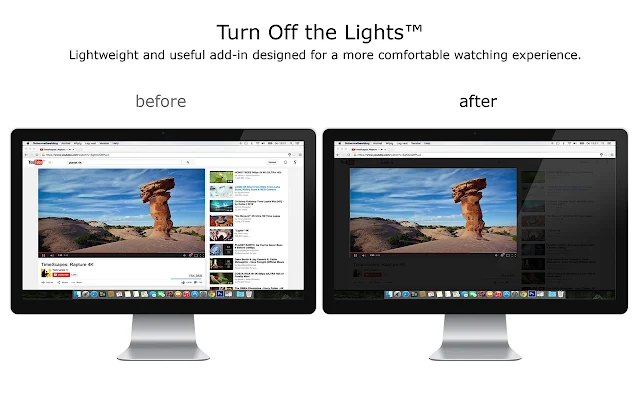
This one cool extension actually makes the entire page fade to dark, so you can watch the videos as if you were in the cinema. The name of this extension is 'Turn Off The Lights' and you can install it on your Google Chrome by clicking here.

With a single click on the lamp button, the page will fade to dark. And automatically focus on the video. By clicking on it again, the page will return to normal.
Turn Off the Lights is a lightweight and useful add-in designed for a more comfortable watching experience. It works for all known video sites such as YouTube, Vimeo, Dailymotion, Hulu, Metacafe, YouKu, etc. Not only this but these extensions are compatible with Google Chrome™, Apple Safari™, Mozilla Firefox™, Opera™, Internet Explorer™, Maxthon™ and Yandex™ web browsers.
A few great features in this browser extension:
✓ Turn the lights back on, by clicking on it
✓ Support multiple video sites: YouTube™, HTML5 video,... and more
✓ Customize your YouTube™:
Auto HD: Set videos to play in HD automatically. Users can select from highres > 1080p > 720p > 480p > 360p > 240p > 144p > default
Auto Wide: Automatically plays the video on the widest mode
,... and more
✓ Easter Eggs:
Shortcut key: T -> Do you like a real movie theater feeling?
✓ Option to make the screen dark when the user clicks on the play button
✓ Option to turn on/off the fade in and fade out effects
✓ Custom colors
✓ Option to Flash Detection
✓ Option to Show Dimness Level Bar
✓ Option Eye Protection for when it's night. And with whitelist/blacklist filter
✓ Option atmosphere lighting that shows a glow around the video player
✓ Option to show the dark layer on the top of the window
✓ Options to shortcut keys:
Ctrl + Shift + L to toggle the lights
Alt + F8 to restore the default opacity value
Alt + F9 to save the current opacity value
Alt + F10 to enable/disable the Eye Protection feature
Alt + (arrow up) to increase the opacity
Alt + (arrow down) to decrease the opacity
Alt + * to toggle the lights on all open tabs
✓ Option Camera Motion
✓ Option Speech Recognition
✓ Option to place the Night Mode switch to toggle YouTube™ in black or white theme. And with whitelist/blacklist filter
Time stamp: Activate the Night Mode within the chosen time
Blackout: Dims the web page and activates the Night Mode
✓ Option to stop YouTube™ and HTML5 videos from automatically playing.
This one cool extension actually makes the entire page fade to dark, so you can watch the videos as if you were in the cinema. The name of this extension is 'Turn Off The Lights' and you can install it on your Google Chrome by clicking here.
With a single click on the lamp button, the page will fade to dark. And automatically focus on the video. By clicking on it again, the page will return to normal.
Turn Off the Lights is a lightweight and useful add-in designed for a more comfortable watching experience. It works for all known video sites such as YouTube, Vimeo, Dailymotion, Hulu, Metacafe, YouKu, etc. Not only this but these extensions are compatible with Google Chrome™, Apple Safari™, Mozilla Firefox™, Opera™, Internet Explorer™, Maxthon™ and Yandex™ web browsers.
A few great features in this browser extension:
✓ Turn the lights back on, by clicking on it
✓ Support multiple video sites: YouTube™, HTML5 video,... and more
✓ Customize your YouTube™:
Auto HD: Set videos to play in HD automatically. Users can select from highres > 1080p > 720p > 480p > 360p > 240p > 144p > default
Auto Wide: Automatically plays the video on the widest mode
,... and more
✓ Easter Eggs:
Shortcut key: T -> Do you like a real movie theater feeling?
✓ Option to make the screen dark when the user clicks on the play button
✓ Option to turn on/off the fade in and fade out effects
✓ Custom colors
✓ Option to Flash Detection
✓ Option to Show Dimness Level Bar
✓ Option Eye Protection for when it's night. And with whitelist/blacklist filter
✓ Option atmosphere lighting that shows a glow around the video player
✓ Option to show the dark layer on the top of the window
✓ Options to shortcut keys:
Ctrl + Shift + L to toggle the lights
Alt + F8 to restore the default opacity value
Alt + F9 to save the current opacity value
Alt + F10 to enable/disable the Eye Protection feature
Alt + (arrow up) to increase the opacity
Alt + (arrow down) to decrease the opacity
Alt + * to toggle the lights on all open tabs
✓ Option Camera Motion
✓ Option Speech Recognition
✓ Option to place the Night Mode switch to toggle YouTube™ in black or white theme. And with whitelist/blacklist filter
Time stamp: Activate the Night Mode within the chosen time
Blackout: Dims the web page and activates the Night Mode
✓ Option to stop YouTube™ and HTML5 videos from automatically playing.


